Feature
Project Dashboard
Your whole operation, at a glance
A live dashboard of what’s due, what’s overdue, throughput, and completion across your work.
- Live KPIs: due, overdue, completion
- Throughput & status-mix charts
- Drill down by project/department/team
- Custom date ranges
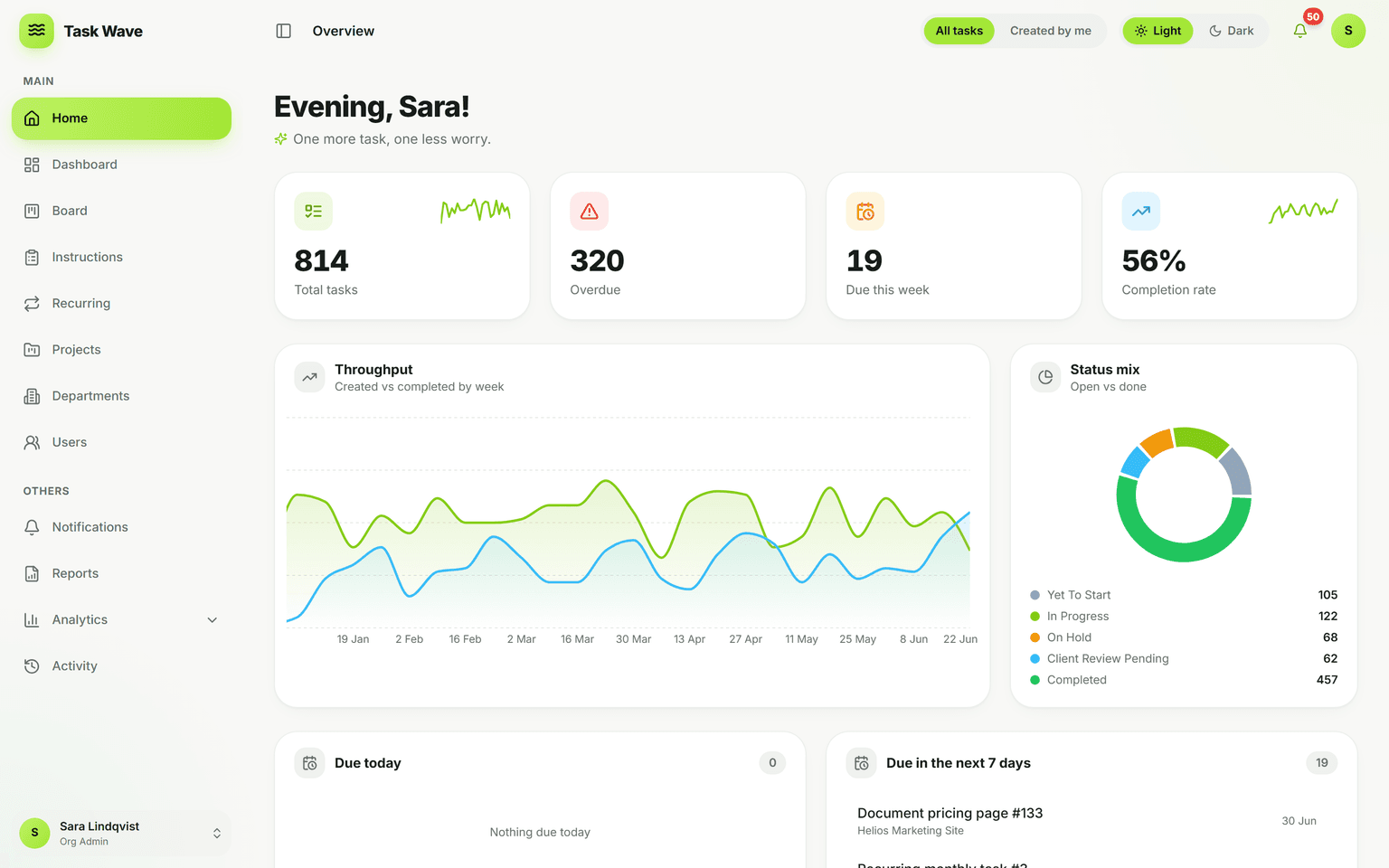
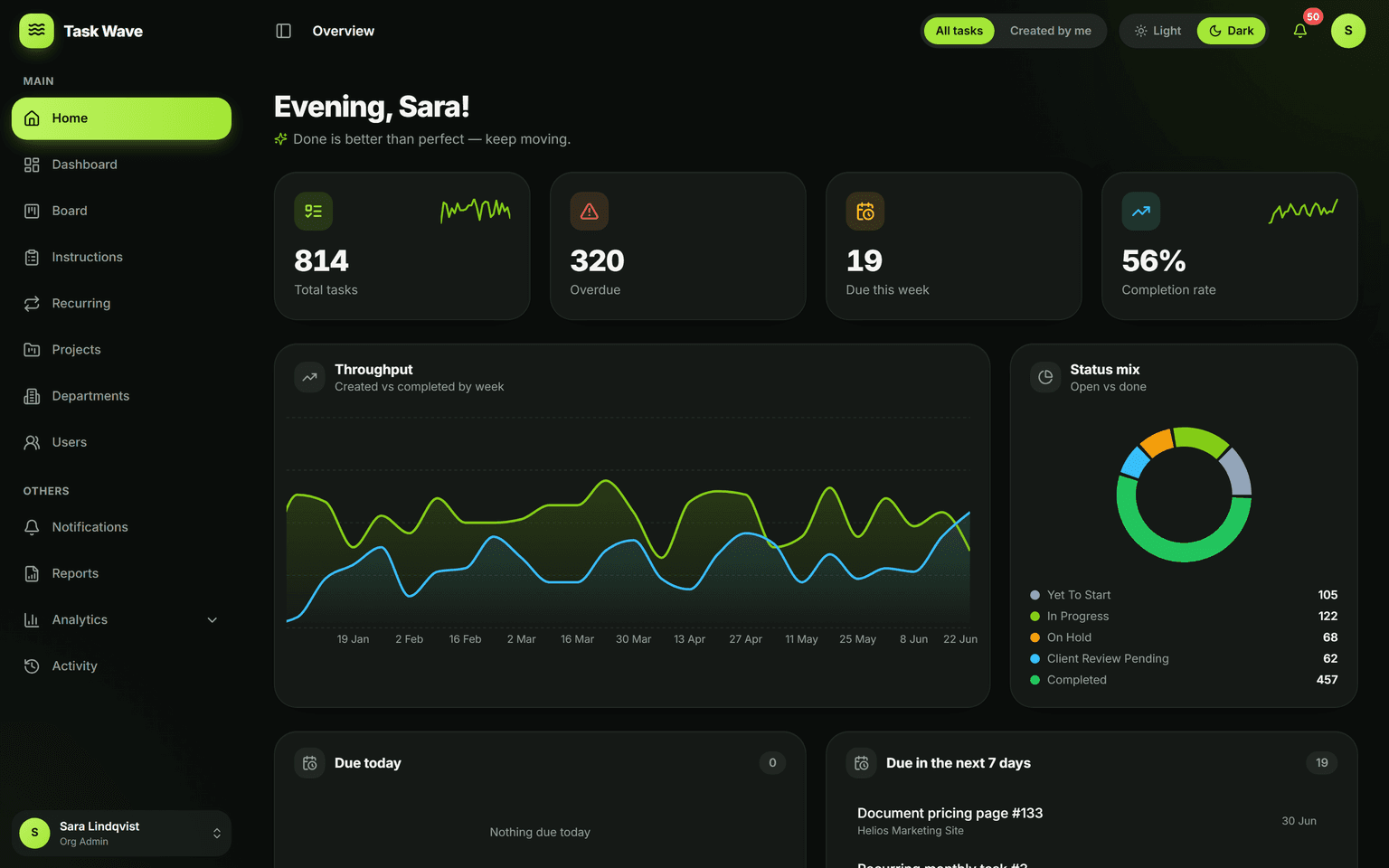
The TaskWave dashboard gives leaders and teams an at-a-glance view: total and overdue tasks, due-this-week, completion rate, a throughput chart, and a status mix — all updating live as work moves. Drill into projects, departments, or teams, and use custom date ranges to focus any window.
What a project dashboard should answer
A project dashboard should answer the questions a manager asks every morning: What's overdue? What's due this week? Is the team on track? Is anyone overloaded? The difference between a good dashboard and a bad one is whether it answers these questions in 30 seconds without a meeting — or requires 30 minutes of drilling before you know anything actionable.
TaskWave's live dashboard KPIs
- Total open tasks — how much work is currently in flight
- Overdue tasks — what has passed its ETA without being completed
- Due this week — what needs to land before the weekend
- Completion rate — the percentage of tasks closed in the period
- On-time rate — of those completed tasks, how many finished on time
- Throughput chart — created vs. completed over time (the delivery trendline)
- Status mix — proportion of work in each status right now
Drill-down by project, department, or team
Every KPI can be filtered by project, department, or team member. A project manager can see the dashboard scoped to one project; a department head can see their function's numbers; an org admin can see everything. Role-based access means each view shows exactly what the viewer is allowed to see — no separate access configuration needed.
Real-time updates, no manual refresh
The dashboard pulls live data. When a task is completed at 3 p.m., the completion rate and throughput chart update immediately — no need to refresh a report or wait for a nightly sync. This makes the dashboard useful not just for planning but for monitoring work as it happens throughout the day.
Custom date ranges for any analysis window
The default dashboard covers the current period, but you can set any date range — last month, last quarter, the current sprint window, or a specific project phase. This flexibility makes the dashboard useful for retrospectives and reviews as well as real-time monitoring.
From dashboard to action
A dashboard that shows overdue tasks but can't do anything about them is just a source of anxiety. In TaskWave, you can go from the dashboard overdue count directly into the task grid, filtered to show those tasks, and reassign or reprioritize from there. The insight and the action happen in the same tool.
Who uses the project dashboard most
- Project managers who need a morning summary of each project's health
- Operations leads who track multiple departments in one view
- Org admins who need org-wide performance visibility
- Team leads who monitor their department's workload and delivery rate
Related features
The project dashboard is built on top of analytics (the underlying data engine) and task management (the tasks being tracked). It connects to reports (for exporting dashboard insights for external audiences) and departments (for team-level views).