Feature
Task Management
An Excel-fast grid your team will actually use
Capture, assign, and track every task in a keyboard-fast grid — status, priority, ETA, assignees, departments, and performance, all editable inline.
- Inline editing across status, priority & dates
- Per-task ETA vs. completed performance scoring
- Powerful search, filters & saved views
- Task drawer with comments, files & activity
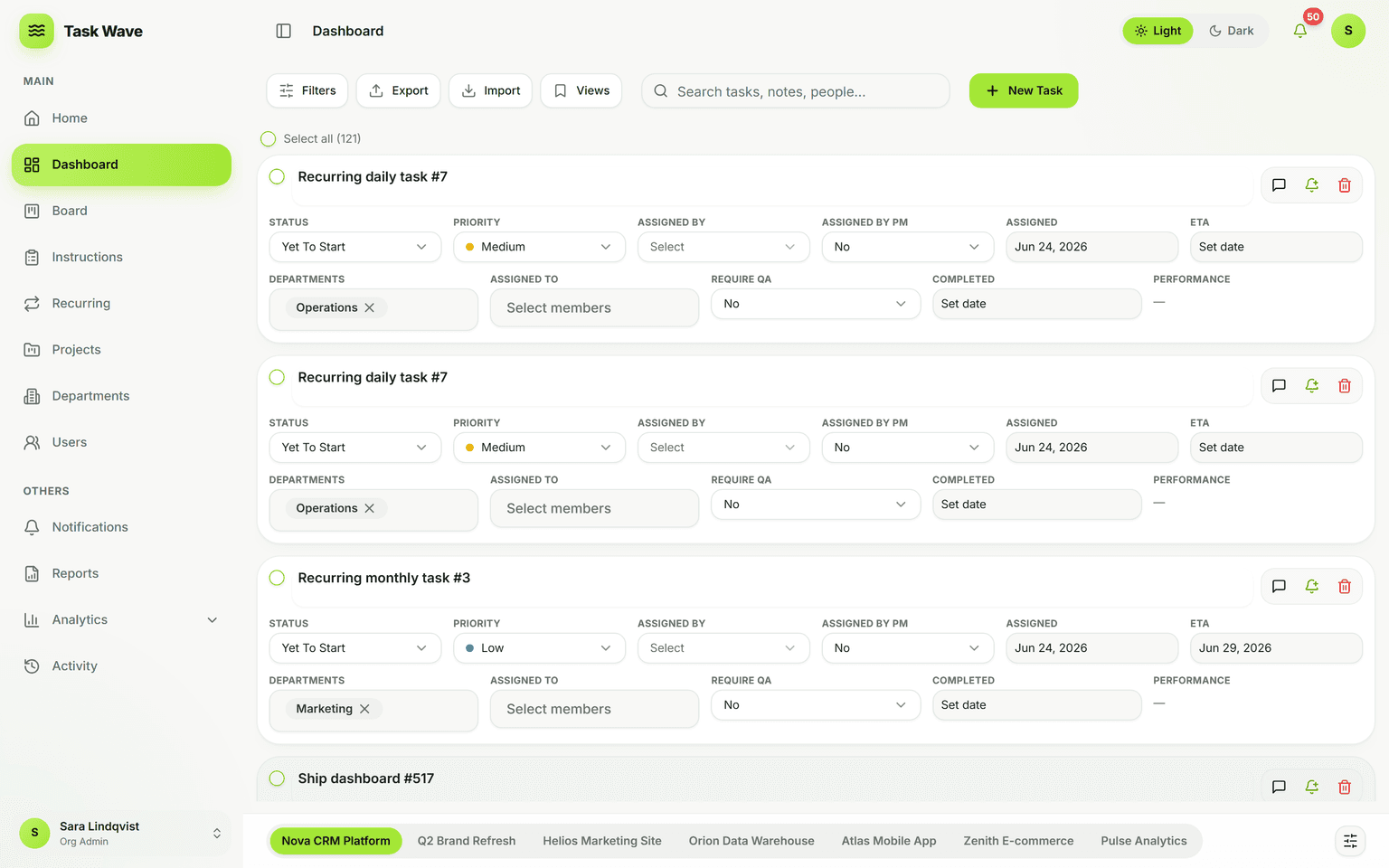
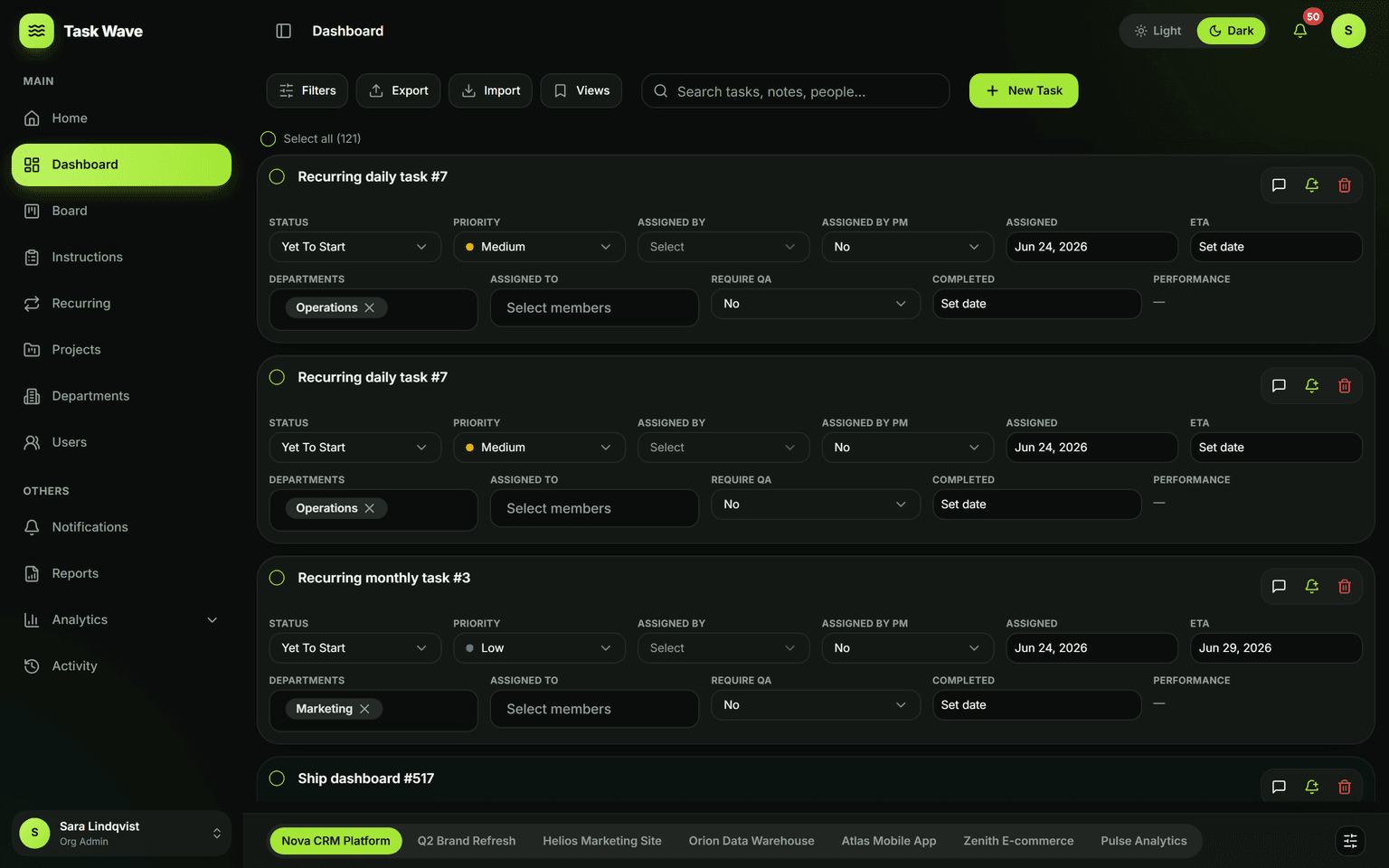
TaskWave’s grid feels like a spreadsheet but behaves like real software. Edit status, priority, dates, and assignees right in the cell; filter and search across every field; and switch projects instantly. Each task carries an ETA and a completed date, so TaskWave automatically scores on-time performance and surfaces what’s slipping before it becomes a problem. A drawer opens the full task — comments, attachments, issue details, revisions, and a complete activity timeline — without leaving the grid.
What task management means in practice
Task management is the discipline of making sure every piece of work has a home, an owner, a priority, and a due date — and that progress is visible to the people who need to see it. Without it, work lives in chat threads and memory, and the most important things get pushed down by whatever is loudest. With task management software, every task is a first-class record: created, assigned, tracked, and closed with a clear history of what happened and when.
How the TaskWave task grid works
The grid is the heart of TaskWave. It looks and feels like a spreadsheet — you can tab between cells, type values, and move fast — but every cell write is saved instantly to a live database, and every person with access sees the same current state. There is no "save" button and no version confusion. You can filter, search, and sort across every field, save the resulting view, and switch between projects without losing your place.
What each task carries
- Task name and department (which team owns it)
- Assigned-to member(s) and assigned-by (the person who created or delegated it)
- Priority: Critical, High, Medium, or Low
- ETA (expected completion date) and completed date
- Status: Yet To Start, In Progress, On Hold, Client Review Pending, or Completed
- On-time performance: scored automatically by comparing ETA to completed date
- Issue, Issue Description, Revisions (for QA-heavy workflows)
- Comments, file attachments, and a full activity timeline in the drawer
The task drawer
Opening any task slides out a full detail drawer without leaving the grid. There you can read and reply to comments, upload and preview attachments, review issue details and revisions, see the complete activity timeline (who changed what and when), and set or edit every field. The drawer keeps context attached to the work, so you never have to search chat for a decision.
On-time performance scoring
Every completed task is automatically scored by comparing its completed date to its ETA: early, on time, or late. These scores roll up into an on-time completion rate in analytics — so you can see at a glance whether commitments are realistic, and spot patterns (certain projects, certain people, certain types of work) before they become recurring problems.
Who benefits most from task management software
- Operations and delivery teams with many concurrent tasks across people
- Project managers who need to see status without scheduling a meeting
- Team leads who assign work and want visibility without micromanaging
- Anyone replacing a shared spreadsheet or a task list in chat
Related features
Task management works best paired with project management (to group tasks into organized projects), departments and roles (to scope visibility), analytics (to track throughput and on-time delivery), and notifications (to keep owners on deadline).