Feature
Analytics
Know exactly how work is flowing
Live dashboards on throughput, on-time performance, workload by team & department, and overdue aging.
- Completion & on-time rates
- Throughput over time
- Workload by member & department
- Custom date ranges
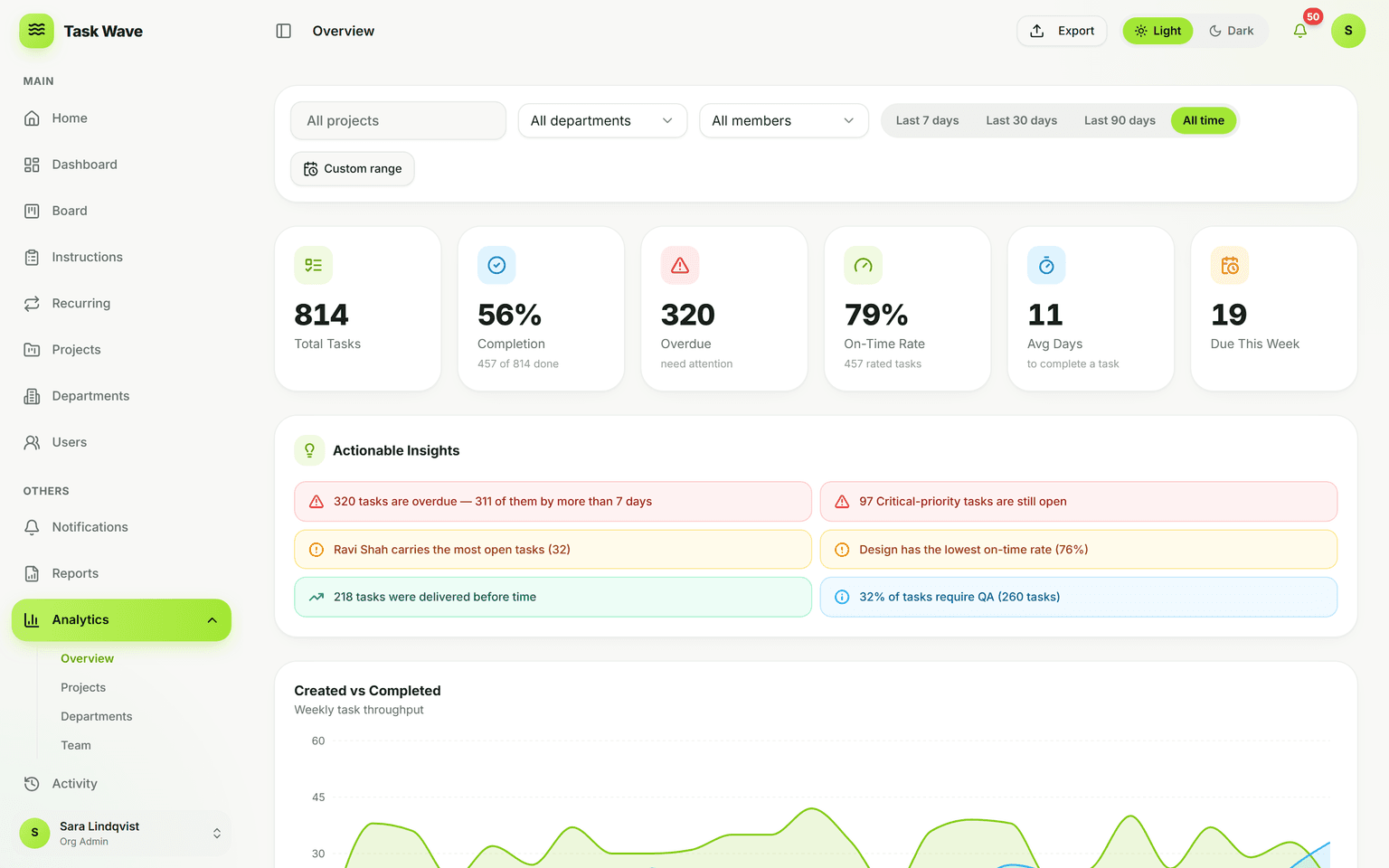
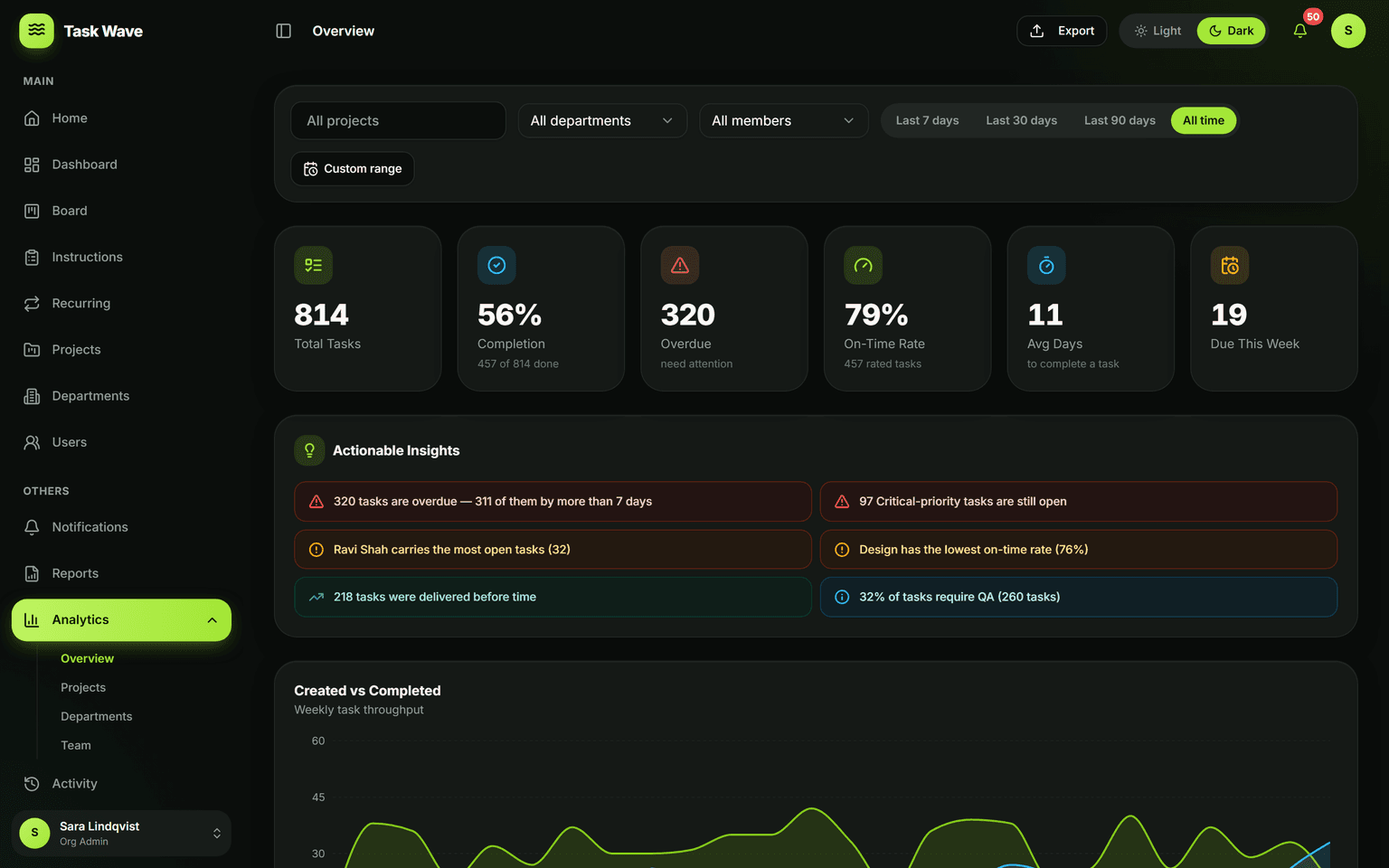
Replace status meetings with live data. See created-vs-completed throughput over time, on-time completion rate, status mix, and workload by member and department — with custom date ranges and per-project, per-department, and per-team breakdowns. Everything updates as work moves, with no manual reporting.
Why live analytics matter more than manual reports
Status meetings exist because nobody has a live view of status. When you need to schedule a meeting to find out where a project stands, you're paying with everyone's time — and the answer is already stale by the time you act on it. Analytics in TaskWave replace status meetings with a live dashboard that updates as work moves: no meeting, no spreadsheet, no waiting.
What TaskWave analytics track
- Throughput: tasks created vs. completed over time (a trendline for delivery rate)
- On-time completion rate: what percentage of tasks are finished by their ETA
- Status mix: proportion of work in each status right now
- Workload by member: how many tasks each person carries, and their on-time record
- Workload by department: capacity planning at the team level
- Overdue aging: how long overdue tasks have been outstanding
Drill-down and custom date ranges
Every chart and metric can be filtered by project, department, or team, and by any custom date range. This means you can look at last quarter's throughput for one department, or this week's overdue count for one project — without needing a separate reporting tool. The data is live and already organized by the work structure you've set up.
Who sees what in analytics
Analytics in TaskWave respect the same role-based access as everything else. A team lead sees their department's numbers. A project manager sees the projects they manage. An org admin sees the whole organization. A super admin sees across multiple organizations. Nobody sees data they shouldn't, and there's no separate analytics permission to configure.
From analytics to action
Good analytics answer "what's happening now?" but great analytics prompt action. TaskWave's workload view lets you see who's overloaded in the same screen where you reassign tasks. The on-time rate trend shows whether a change in process is working. The status mix shows if work is piling up before a bottleneck. The goal is not charts — it's earlier interventions.
Related features
Analytics pair with reports (to export data for external audiences), task management (the raw data behind every chart), departments (for team-level breakdowns), and recurring work (to see if automation is reducing the volume of manually-created tasks).